

What this credential is for
UseGoogle OAuth Credential for Google-integrated nodes such as:
Create project and OAuth client in Google Cloud
Open Google Cloud Console
Go to Google Cloud Console and sign in with the Google account you want to connect.
Create or select a project
In
Google Cloud Console > Project selector, choose an existing project or click New Project.
Create it, then confirm it is selected in the top bar before continuing.Configure OAuth consent screen
Go to
APIs & Services > OAuth consent screen.
For most personal accounts, you would want to choose External.Fill required fields:- App name
- User support email
- Developer contact email
Enable the APIs you need
Go to
APIs & Services > Library and enable only the APIs required by your graph.Common examples:Google Calendar APIfor Calendar nodes.Gmail APIfor Gmail nodes.Google Sheets APIfor Sheets nodes.Google Docs APIfor Docs nodes.
Create OAuth client credentials
Go to After creation, copy the generated Client ID and Client Secret. You will need these to create the credential in RELAI in the next step.
APIs & Services > Credentials and click Create Credentials > OAuth client ID.
Choose the application type that matches your connector/tool:Web application: most common for hosted connectors/tools.
Authorized redirect URI:Create the credential in RELAI
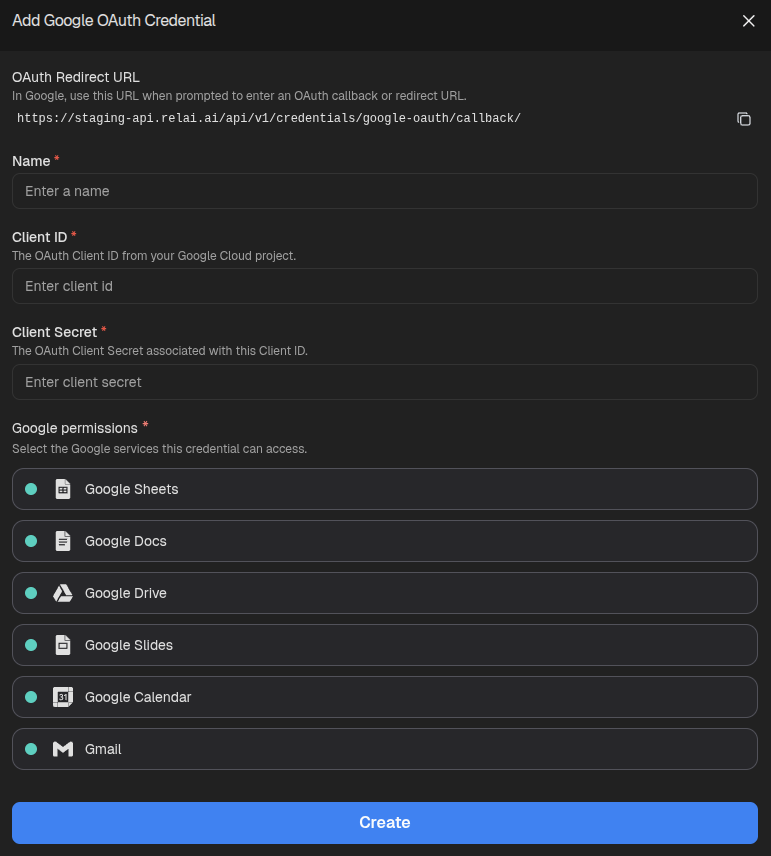
Open credentials in RELAI
Go to the Credentials page.
This credential can be created by clicking
Create new credential > Create Google OAuth Credential.Fill in form details and create
In the
Add Google OAuth Credential form:- Enter a credential name.
- Enter your Google OAuth Client ID.
- Enter your Google OAuth Client Secret.
- Select which Google permissions to request.
Create, complete authorization, and select this credential in any node that requires a Google OAuth Credential.Scope guidance
Include the required scopes for your workflow. If one credential is shared by multiple Google nodes, include the union of required scopes.| Use case | Typical scope(s) |
|---|---|
| Google Sheets access | https://www.googleapis.com/auth/spreadsheets |
| Google Docs access | https://www.googleapis.com/auth/documents |
| Google Drive file access | https://www.googleapis.com/auth/drive |
| Google Slides access | https://www.googleapis.com/auth/presentations |
| Google Calendar access | https://www.googleapis.com/auth/calendar |
| Gmail access | https://mail.google.com/ |
Quick troubleshooting checklist
- Confirm the correct GCP project is selected when creating OAuth credentials.
- Verify all required APIs are enabled in
APIs & Services > Library. - If app status is
Testing, ensure your Google account is added as a test user. - Recheck that the redirect URI configured in GCP exactly matches the URI shown by your connector/tool.
- Ensure scopes in the credential include every Google service your graph uses.