

What this credential is for
UseSlack OAuth Credential for Slack-integrated nodes such as:
Create OAuth client in Slack
Open Slack API apps dashboard
Go to Slack API: Your Apps and sign in with the Slack account connected to your workspace.
Create or select a Slack app
In
Slack API > Your Apps, click Create New App to create a new app (or open an existing app).
Choose the workspace where this app will be installed.Set OAuth redirect URL
In your app settings, go to Save the redirect URL configuration.
Features > OAuth & Permissions > Redirect URLs.
Add this exact URL:Get Client ID and Client Secret
In your app settings, go to
Settings > Basic Information > App Credentials.
Copy the Client ID and Client Secret for use in RELAI.Configure bot scopes
In your app settings, go to
Features > OAuth & Permissions > Scopes > Bot Token Scopes.
Add the bot token scopes required by your workflow.Required scopes shown in RELAI Slack credential form:chat:writechannels:readusers:readgroups:readim:readmpim:read
Install app to workspace
In your app settings, go to
Features > OAuth & Permissions > OAuth Tokens for Your Workspace.
Click Install to Workspace (or Reinstall to Workspace after scope updates), then authorize the app.Create the credential in RELAI
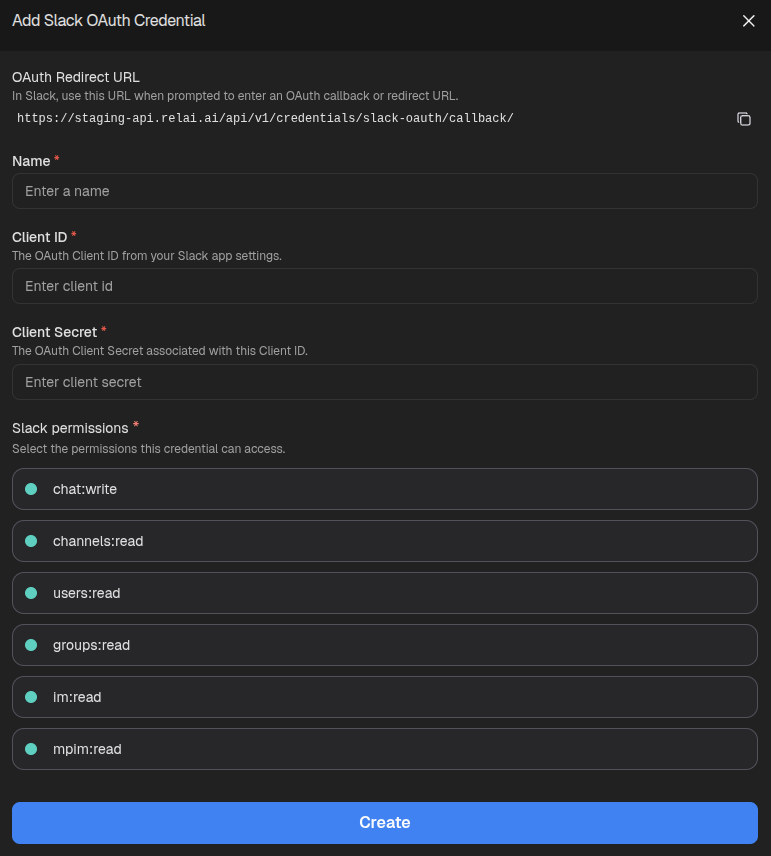
Open credentials in RELAI
Go to the Credentials page.
Click
Create new credential > Create Slack OAuth Credential.Fill in Slack OAuth fields
In the
Add Slack OAuth Credential form:- Enter a credential name.
- Enter the Slack app Client ID.
- Enter the Slack app Client Secret.
- Select the required Slack permissions.
Scope guidance
Use the required scopes for your workflow. If one credential is shared by multiple Slack nodes, include the union of required scopes.| Use case | Scope |
|---|---|
| Post messages | chat:write |
| Read public channels | channels:read |
| Read users | users:read |
| Read private channels | groups:read |
| Read direct messages | im:read |
| Read group direct messages | mpim:read |